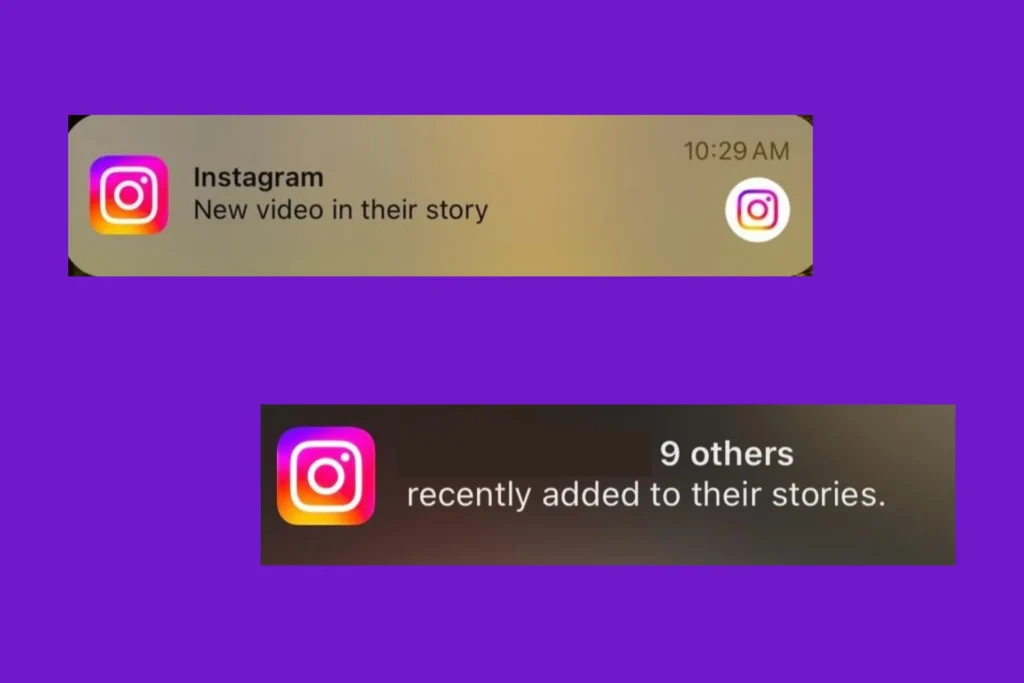
Are you, too, receiving Instagram notifications every time someone posts a story? As far as I can remember, this wasn’t the case until a few months ago. Or maybe those notifications weren’t as frequent back then. But I am certain I never adjusted any notification settings.
While I couldn’t find out what exactly changed, I discovered a quick way to turn off Instagram story notifications, and since then, I haven’t gotten any!
Why did I get a notification that someone added to their story on Instagram?
You get Instagram story notifications for two reasons:
- You are tagged in the story posted by someone
- You have enabled notifications for stories posted by the user
How do I turn off Instagram story notifications?
1. Disable story notifications for specific accounts
If you are getting story notifications for specific accounts, as was the case with me, you simply need to turn those notifications off. While the feature has been there for years, many of us never knew about it. Surprising, isn’t it?
To turn off Instagram story notifications for one account, head to that profile > tap on the Bell icon near the top right > disable the toggle for Stories.

If you don’t want to receive any notifications from that account, disable the other toggles as well, i.e., Posts, Reels, Broadcast channels, and Live videos.
In my experience, Instagram is auto-enabling notifications from popular accounts to keep users engaged. That’s the only explanation since these notifications weren’t as frequent earlier!
2. Adjust the notification settings
While the earlier method explained disabling Instagram story notifications for one account, what if you want to do it for all your followers? The good news is that Instagram has a dedicated section to adjust the notification settings for everyone at once!
To adjust Instagram story notifications, navigate to your profile > tap the hamburger (☰) icon near the top right > select Notifications > choose Posts, stories, and comments > select the desired option for each notification setting.

I disabled Instagram notifications for story comments and when someone shares a post or story for the first time. You could also disable the rest if you like fewer notifications from Instagram!
3. Disable all notifications
I am someone who likes to check Instagram at my own convenience and not be bothered by an incessant barrage of notifications every hour or so. That’s why I prefer disabling all Instagram notifications at once, which of course includes stories posted by my followers. If you, too, feel the same way, I recommend temporarily disabling all Instagram notifications. Give it a try at least!
To temporarily disable all notifications from Instagram, open your profile > tap the hamburger (☰) icon > select Notifications > enable the Pause all option > select 8 hours.

If you like a notification-free Instagram like me, go ahead and permanently disable all notifications via the phone settings!
These are the ways you can turn off Instagram story notifications for a specific account or all accounts in one go. If you were to ask me, I would recommend the third method, disabling all Instagram notifications. Honestly, this helps minimize the time you spend on Instagram. So, if you are looking to cut down the screen time, that’s the option to go with!
Before you leave, find out why you are losing Instagram followers and the expert-recommended ways to stop it!
For any queries or to share your thoughts on Instagram notifications, drop a comment below.

With over five years of experience in the tech industry, Kazim excels at simplifying complex topics, making them accessible to tech enthusiasts and general readers alike. He has contributed to several renowned publications worldwide, including WindowsReport and Allthings.how, bringing insightful coverage of key developments in the field.
In the past, Kazim was closely associated with a digital marketing firm that handled social media profiles of influencers. This helped him gain deep insights into Instagram’s algorithm and policies.